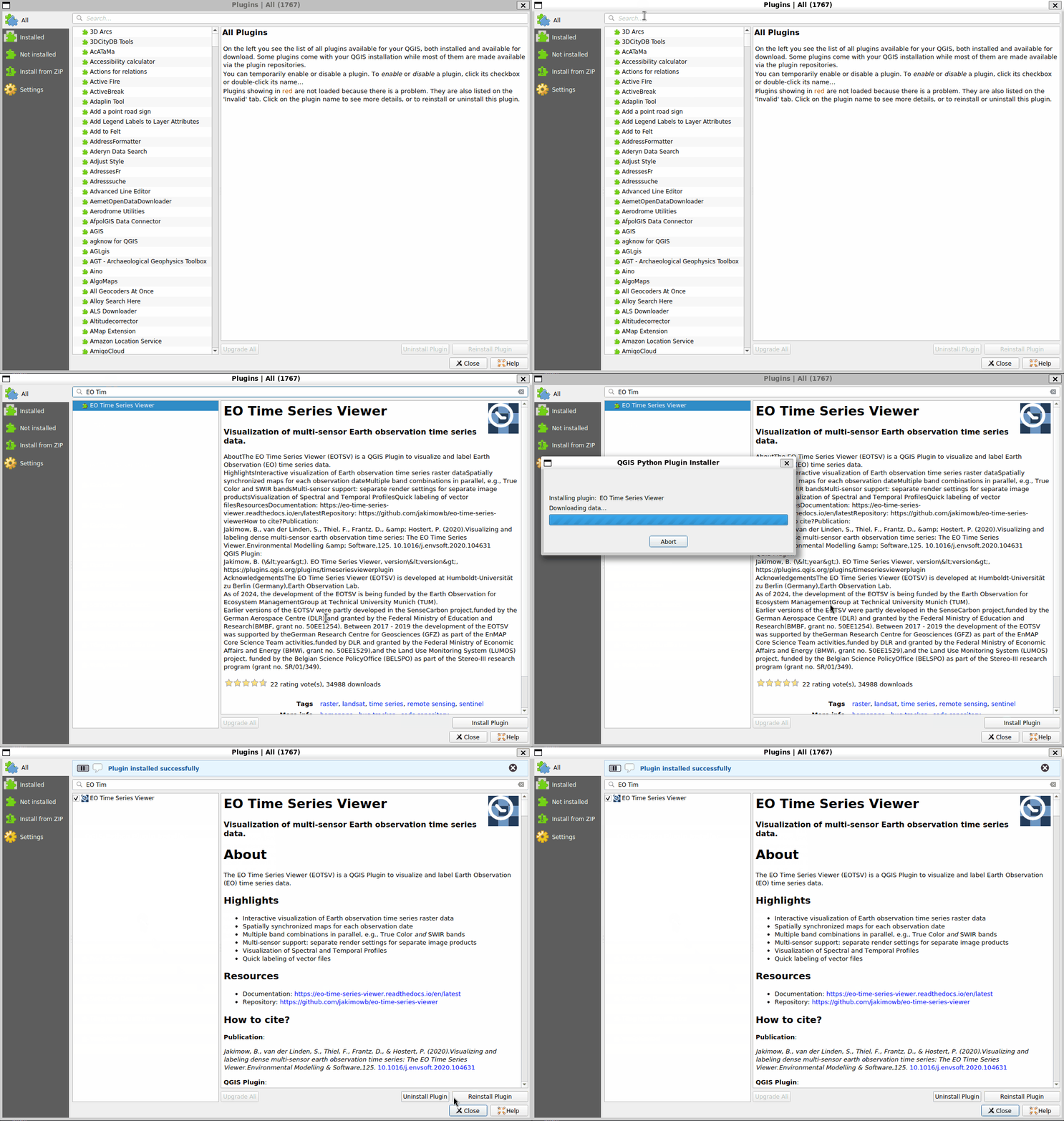
Some standard repositories, e.g. that for Ubuntu, are known to deliver outdated QGIS versions.
Therefore it is recommended to install QGIS using Flatpak (https://flathub.org/en/apps/org.qgis.qgis),
conda (see Conda tab) or docker (see Docker tab).
Note
As of June 2025, official QGIS installers for macOS are currently outdated and do not reflect
the latest QGIS versions (see https://qgis.org/download/).
For macOS it is recommended to install QGIS and all python dependencies either using
conda (see Conda tab) or docker (see Docker tab).
Conda is a cross-platform package manager that allows to install software in separated environments.
We recommend to install conda using Miniforge,
a minimal installer which by default installs conda packages from the conda-forge channel.
Install conda
Linux / Unix / MacOS
# download install script
curl-L-O"https://github.com/conda-forge/miniforge/releases/latest/download/Miniforge3-$(uname)-$(uname-m).sh"# run install script
shMiniforge3-$(uname)-$(uname-m).sh
Ensure that your python has the QGIS API available. You can use the the
eotsv.yml conda environment to install QGIS and other required python packages:
 icon or from the menu bar