6. Temporal Profiles
6.1. Loading
Temporal profiles can be loaded interactively with the cursor location info tool, or for point locations that are defined in a vector layer, using the read temporal profiles processing algorithms or the load_eotsv_profiles.py script.
6.1.1. On-the-fly
To load a single temporal profile on-the-fly, activate the identify cursor location value tool
 with option collect temporal profiles
  . Then click with the mouse
on a map location of interest to extract the temporal profile for. If no other vector layer exists, the loaded profile will be added to a new created in-memory vector layer
and visualized in the temporal profile view.
. Then click with the mouse
on a map location of interest to extract the temporal profile for. If no other vector layer exists, the loaded profile will be added to a new created in-memory vector layer
and visualized in the temporal profile view.
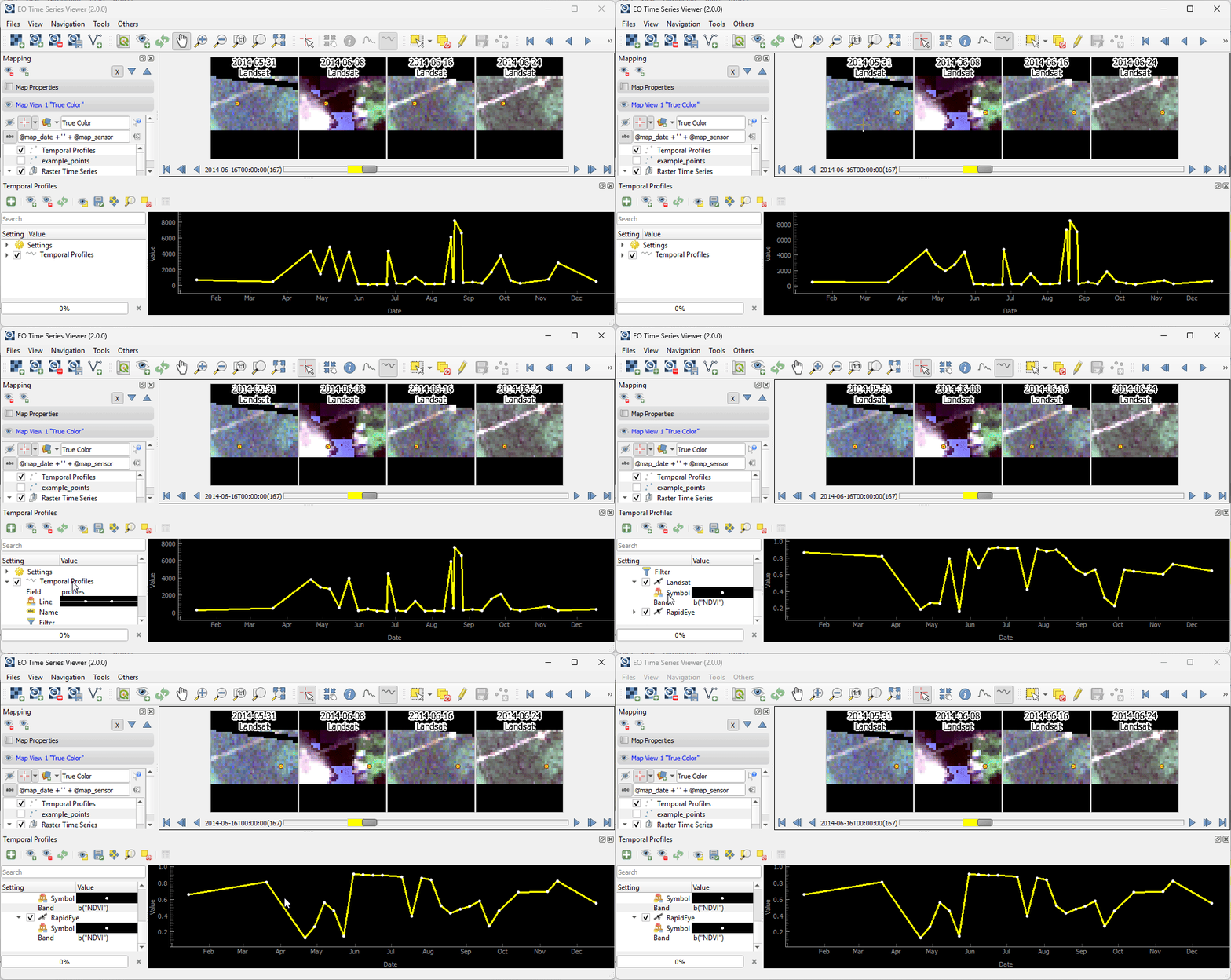
Fig. 6.1.1 Collecting temporal profiles.
6.1.2. QGIS Processing Algorithm
The read temporal profiles processing algorithm loads temporal profiles for multiple point locations. It can be started from menu bar Tools -> Read Temporal Profiles or the QGIS processing toolbox:

6.1.3. Python Script / Command Line
The scripts/load_eotsv_profiles.py script can be used to extract temporal profiles. It uses GDAL-only and can be run from environments that do not have QGIS installed.
Call python load_eotsv_profiles.py -h to show it’s syntax:
python load_eotsv_profiles.py -h
Sample temporal profiles from EO raster time series for each vector feature.

positional arguments:
  vector                Input vector file with point geometries
  rasters               Space-separated list of raster files or directories with raster files to sample from

options:
  -h, --help            show this help message and exit
  -p PATTERN, --pattern PATTERN
                        File pattern for raster search. Default: *.tif
  -j JOBS, --jobs JOBS  Number of jobs to execute in parallel. Default: 4
  -r, --recursive       Recursively search for raster files in directories
  -f FIELD, --field FIELD
                        Field name to store the extracted profiles. Default: profiles
  -o OUTPUT, --output OUTPUT
                        Output vector file. If omitted, input vector file will be modified in-place
  -l LAYER, --layer LAYER
                        Layer name/index in the vector file to choose. If omitted, first layer is used
  --format FORMAT       Output vector format, if it cannot be derived from the output file name
  --n_max N_MAX         Maximum number of raster files to read. Useful for testing

Examples:
    # Basic usage with default settings.
    python load_eotsv_profiles.py points.geojson /path/to/rasters

    # Write outputs into a new vector file "temporalprofiles.gpkg" with field "my_profiles"
    python load_eotsv_profiles.py -o temporalprofiles.gpkg -f my_profiles points.geojson /path/to/rasters

    # Rasters can be specified explicitly as file or within a .txt or .csv file.
    python load_eotsv_profiles.py points.geojson file1.tif file2.tif otherfiles.csv

    # Raster can be searches recursively (-r). The files to read can be specified
    # using a wildcard pattern (-p)
    python load_eotsv_profiles.py -p *_BOA.tif points.geojson /path/to/datacuberoot

    # Using the pattern prefix "rx:" allows to specify regular expressions (yay!)
    python load_eotsv_profiles.py -p rx:.*_BOA.tif$ points.geojson /path/to/datacuberoot
The following example shows how to extract temporal profiles from a FORCE datacube. The regular expression rx:_BOA.tif is used to read only from raster files which end on .tif.
python scripts/load_eotsv_profiles.py -p 'rx:_BOA\.tif$' -r -j 3 /data/my_points_of_interest.geojson /data/MyFORCE_CUBE
Search for source raster files ...
Found 2440 files
Progress: 31.1%
...
Results saved to: /data/my_points_of_interest.geojson
Vector files can be updated in-place. Assuming that my_pois.geojson contains point coordinate of interest, we can update them with
# read temporal profiles for points in FORCE tile X00014_Y0010
python scripts/load_eotsv_profiles.py -p 'rx:_BOA\.tif$' -r -j 3 /data/my_points_of_interest.geojson /data/MyFORCE_CUBE/X00014_Y0010
...

# read temporal profiles for points in FORCE tile X00014_Y0011
python scripts/load_eotsv_profiles.py -p 'rx:_BOA\.tif$' -r -j 3 /data/my_points_of_interest.geojson /data/MyFORCE_CUBE/X00014_Y0011
...
6.2. Data Structure
To visualize a time series in a plot window, the EO Time Series Viewer first extracts the multi-band and multi-sensor time series of the requested point locations. For a single point, the data related to a time series of length n is stored in a JSON struct that contains:
a list
datewith n observation date items. Each date item is represented by an date-time string in ISO 8601 format,a list
valueswith n value lists. Each value item is a list of raster band values in band order, i.e. the pixel profile that was observed at observation datei at the point location,a list
sensorwith n sensor index values s, with 0 <= s < number of sensor_ids,a list with s >= 1
sensor_ids, one for each sensor the time series was observed by,a single sensor id is dictionary or its JSON string that contains the following key-value pairs:
nb(integer) number of bandspx_size_x(float) pixel resolution in x directionpx_size_y(float) pixel resolution in y directiondt(integer) raster data type enumeration value, as taken from Qgis::DataType or GDALDataTypewl(optional) a list of nb float values with the band wavelengthswlu(optional) a string value that describes the wavelength unit, e.g.nmorμmname(optional) a sensor name, e.g.Landsat 8orSentinel-2
The following is a temporal profile JSON struct taken from the EO Time Series Viewer example data (Files > Add Example)
{"date":
    ["2014-01-15T00:00:00", "2014-03-20T00:00:00", "2014-04-21T00:00:00", "2014-04-29T00:00:00", "2014-05-07T00:00:00", "2014-05-15T00:00:00", "2014-05-23T00:00:00", "2014-05-31T00:00:00", "2014-06-08T00:00:00", "2014-06-16T00:00:00", "2014-06-24T00:00:00", "2014-06-25T00:00:00", "2014-07-02T00:00:00", "2014-07-10T00:00:00", "2014-07-26T00:00:00", "2014-08-03T00:00:00", "2014-08-11T00:00:00", "2014-08-17T00:00:00", "2014-08-19T00:00:00", "2014-08-20T00:00:00", "2014-08-26T00:00:00", "2014-08-27T00:00:00", "2014-09-12T00:00:00", "2014-09-20T00:00:00", "2014-09-28T00:00:00", "2014-10-06T00:00:00", "2014-10-14T00:00:00", "2014-11-07T00:00:00", "2014-11-15T00:00:00", "2014-12-17T00:00:00"],
 "sensor":
    [0, 0, 0, 1, 0, 1, 0, 1, 0, 1, 0, 2, 1, 0, 0, 1, 0, 2, 1, 2, 2, 0, 0, 1, 0, 1, 0, 1, 0, 0],
 "sensor_ids": [
    "{\"nb\": 6, \"px_size_x\": 30.0, \"px_size_y\": 30.0, \"dt\": 3, \"wl\": [0.49, 0.56, 0.66, 0.84, 1.65, 2.2], \"wlu\": \"micrometers\", \"name\": \"Landsat OLI\"}",
    "{\"nb\": 6, \"px_size_x\": 30.0, \"px_size_y\": 30.0, \"dt\": 3, \"wl\": [0.49, 0.56, 0.66, 0.84, 1.65, 2.2], \"wlu\": \"micrometers\", \"name\": \"Landsat ETM+\"}",
    "{\"nb\": 5, \"px_size_x\": 5.0, \"px_size_y\": 5.0, \"dt\": 2, \"wl\": null, \"wlu\": null, \"name\": null}"
    ],
"values": [
    [736.0, 1024.0, 1077.0, 4272.0, 2472.0, 1678.0],
    [769.0, 942.0, 763.0, 4345.0, 2138.0, 1043.0],
    [3894.0, 3993.0, 3916.0, 5516.0, 3799.0, 2876.0],
    [3307.0, 3440.0, 3436.0, 5822.0, 4161.0, 3220.0],
    [100.0, 210.0, 105.0, 1926.0, 798.0, 405.0],
    [640.0, 752.0, 595.0, 3822.0, 1725.0, 773.0],
    [3501.0, 3567.0, 3432.0, 4936.0, 3179.0, 2364.0],
    [242.0, 350.0, 216.0, 4046.0, 1606.0, 608.0],
    [146.0, 223.0, 122.0, 1907.0, 654.0, 244.0],
    [242.0, 361.0, 220.0, 3763.0, 1704.0, 615.0],
    [179.0, 356.0, 207.0, 3935.0, 1716.0, 617.0],
    [4573.0, 3682.0, 1944.0, 3504.0, 9692.0],
    [228.0, 415.0, 287.0, 3886.0, 1782.0, 677.0],
    [209.0, 405.0, 268.0, 3949.0, 1686.0, 668.0],
    [202.0, 400.0, 253.0, 3522.0, 1764.0, 715.0],
    [221.0, 412.0, 272.0, 3371.0, 1840.0, 724.0],
    [368.0, 534.0, 627.0, 1911.0, 1691.0, 1072.0],
    [7177.0, 5285.0, 4496.0, 4081.0, 4486.0],
    [669.0, 739.0, 768.0, 1795.0, 1921.0, 1457.0],
    [8686.0, 6353.0, 5231.0, 4679.0, 4948.0],
    [7187.0, 5676.0, 4295.0, 3733.0, 4332.0],
    [410.0, 567.0, 720.0, 1832.0, 2111.0, 1432.0],
    [328.0, 467.0, 562.0, 1613.0, 2195.0, 1596.0],
    [1667.0, 1640.0, 1632.0, 2849.0, 1854.0, 1444.0],
    [949.0, 1313.0, 1466.0, 2943.0, 3292.0, 2392.0],
    [1002.0, 1132.0, 1120.0, 2951.0, 2732.0, 1730.0],
    [288.0, 552.0, 626.0, 2189.0, 2440.0, 2198.0],
    [1448.0, 1662.0, 1688.0, 3874.0, 2997.0, 1932.0],
    [133.0, 229.0, 173.0, 1100.0, 645.0, 330.0],
    [387.0, 685.0, 662.0, 3231.0, 1775.0, 1088.0]
    ]
}
Note
Storing the entire temporal profile, including observations from all bands and different sensors, makes it possible to analyze different bands or spectral indices in parallel, without the need for a a new loading process.
The EO Time Series Viewer can store such JSON formatted temporal profile in any vector layer that supports string fields of unlimited length (most vector formats). Even better are formats that support JSON data types, like a GeoPackage. To use a vector layer field for temporal profiles requires to set its editor widget type to “Temporal Profile”.
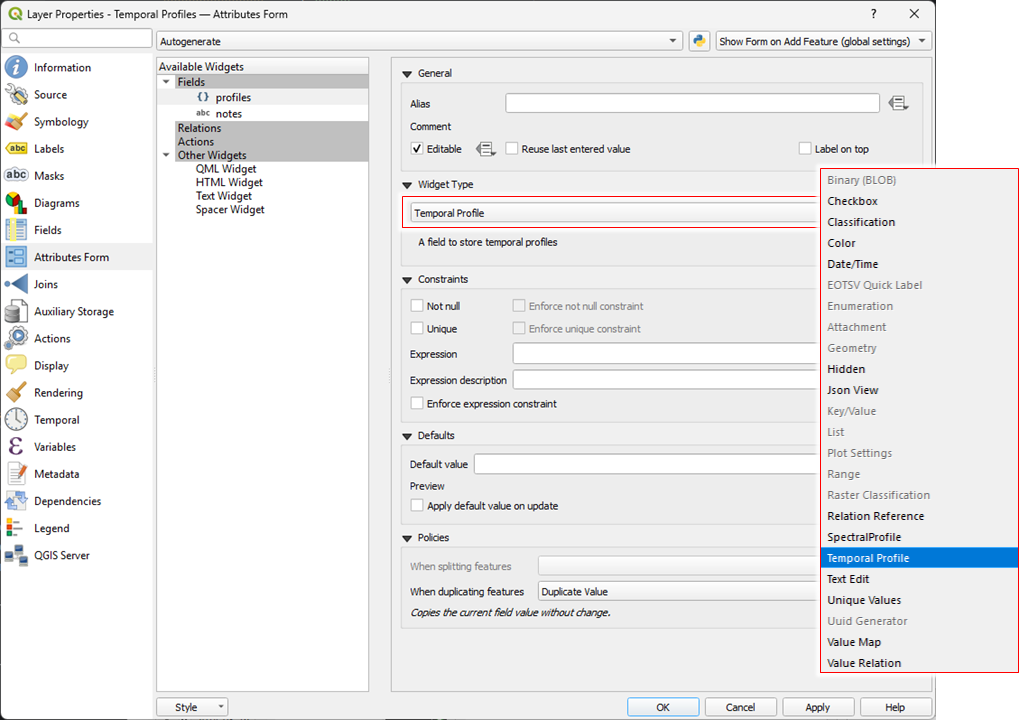
Fig. 6.2.1 Vector layer properties dialog with Attributes Form. The widget type of the “profiles” field is set to “Temporal Profiles”.
6.3. Visualization
Temporal profiles are visualized in the Temporal Profile View widget. If not already done, you can open it via Menu Bar -> View -> Temporal Profiles. The widget has a toolbar, a settings and a plot area (use the cursor to highlight them in the following image).
6.3.1. Toolbar
The toolbar allows to access the following actions:
Icon |
Action |
|---|---|
|
Add temporal profile candidates permanently to the vector layer |
|
Create a new profile view |
|
Remove selected profile views |
|
Reload / refresh the plot |
|
Show only profiles whose vector layer feature are selected, for example in the map visualization or the an attribute table. |
|
Save changes to the vector layer |
|
Pan the map visualization to the coordinates of selected temporal profiles |
|
Zoom the map visualization to the coordinates of selected temporal profiles |
|
Deselect selected temporal profiles |
|
Open the attribute table to show the vector layer features for temporal profile layer selected in the settings table |


6.3.2. Settings
The settings panel controls which and how temporal profiles are visualized. It allows to define one or more profile views
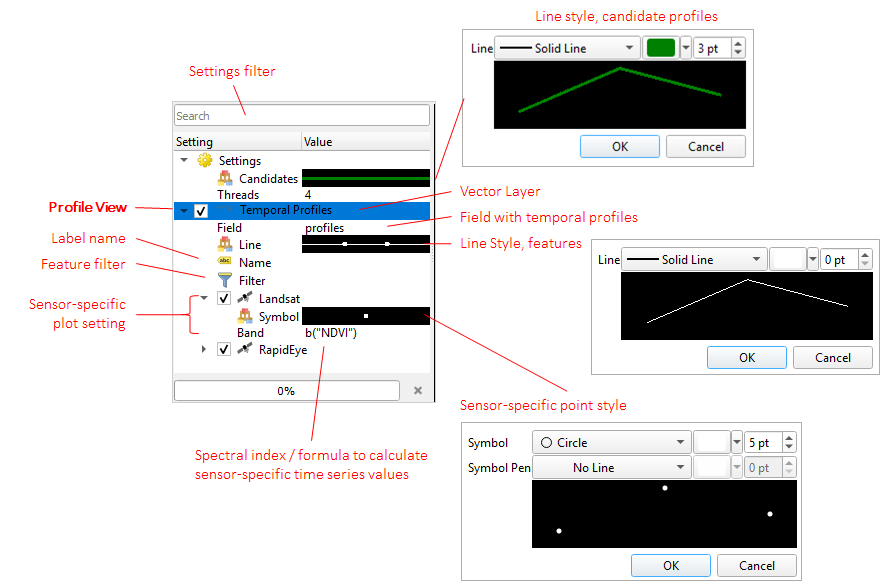
Fig. 6.3.1 The settings panel with one profile view to visualize the temporal profiles that are store in the attribute field profiles of the vector layer “Temporal Profiles”. The temporal profiles contain Landsat and RapidEye observations, whose visualization is handled separately.
A profile view defines:
the vector layer and the vector layer field that contain the temporal profile data
the line-style that is used to plot the profiles
(optionally) a name that is given to the plotted profiles.
(optionally) a filter to plot only profile that match with specific vector layer attributes
for each sensor the profiles have observations from:
a point symbol, e.g. differentiate observations made by different satellites
a python expression to select the required band values or calculate a spectral index to be plotted.
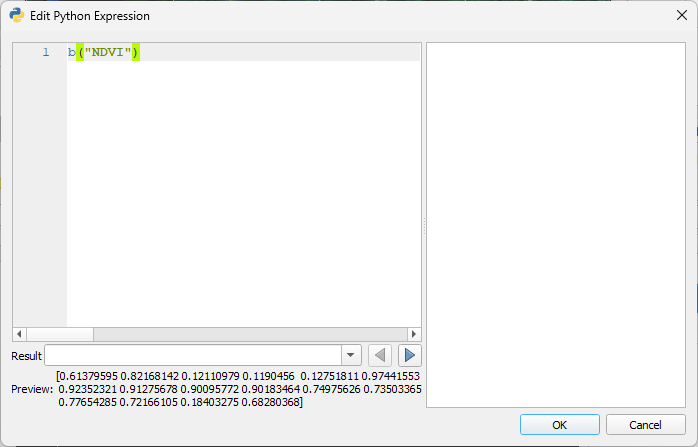
Fig. 6.3.2 The python expression dialog to define the formula that calculate sensor specific band values or spectral indices
In the sensor-specific python expressions the b(...) function is used to extract the band values as numpy array.
These arrays can be used to define the formula to calculate the final plot values.
If band wavelength and wavelength units are defined for the sensor, the b(...) function can be used with
string inputs, like a band identifier or a spectral index acronym.
Example |
Description |
|---|---|
|
return the values of the 1st band |
|
return the values of the 1st band, scaled by factor 100 |
|
returns the value of the near-infrared band (see settings) |
|
returns the NDVI values for Landsat 8 legacy bands |
|
returns the NDVI values, requires that wavelength information is provided for the sensor |
|
returns the NDVI values, requires that wavelength information is provided for the sensor |
The band identifiers and spectral index definitions are taken from the Awesome Spectral Index project You can inspect them in the EO Time Series Viewer settings (Others > Settings): For checked indices in the settings list, the profile view context menu will show a shortcut to set it in the python expression field.
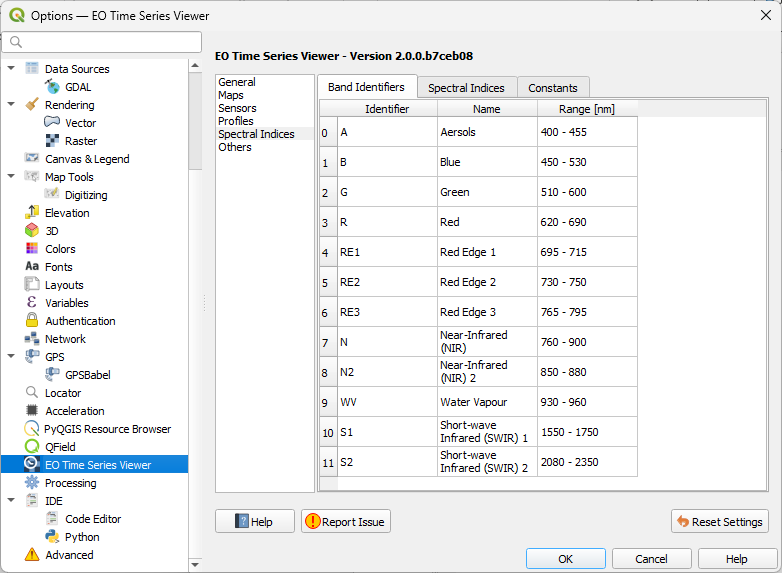
Fig. 6.3.3 EO Time Series Viewer Settings for spectral indices, list of band identifiers.
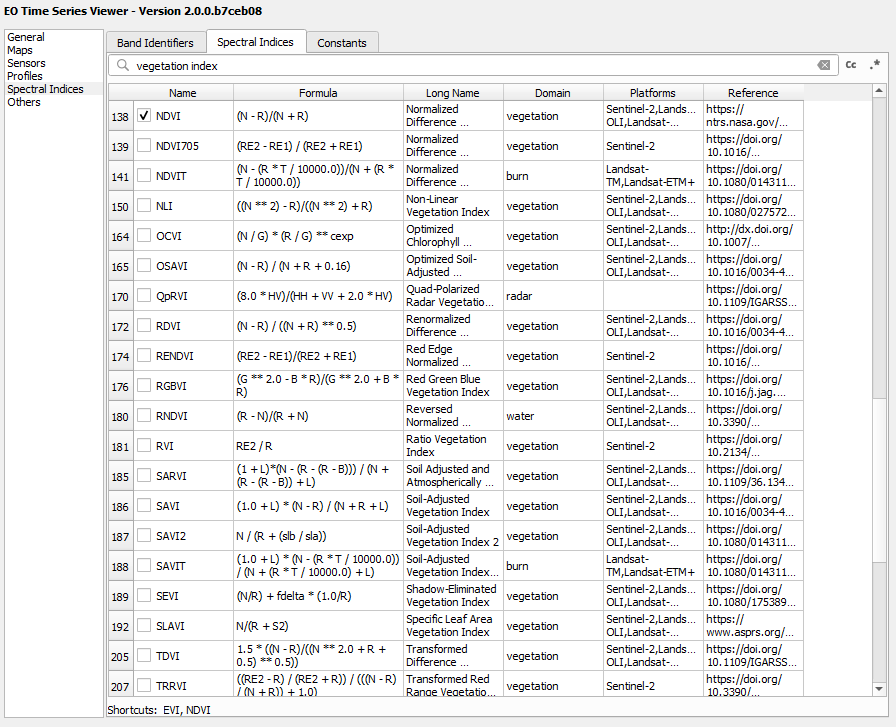
Fig. 6.3.4 EO Time Series Viewer Settings for spectral indices, spectral index definitions. Because NDVI and EVI are checked, they do appear as shortcuts in the context menu of the profile view (shown next figure).

Fig. 6.3.5 The profile view context menu allows to active spectral indices fast.
6.3.3. Profile Plot
The profile plot panel visualizes the profiles as defined in the settings panel. The range of the x and y axis can be freely adjusted. To restore the default axis values, move the cursor to the the lower-left corner of the plot and click the click the [A] symbol.
A left-mouse click on a profile selects the corresponding vector feature, which becomes visible in an attribute table or map canvases that show the layer. Vice versa, a change of the selected points in a map canvas or rows in an attribute table does change which profiles are highlighted in the profile plot.
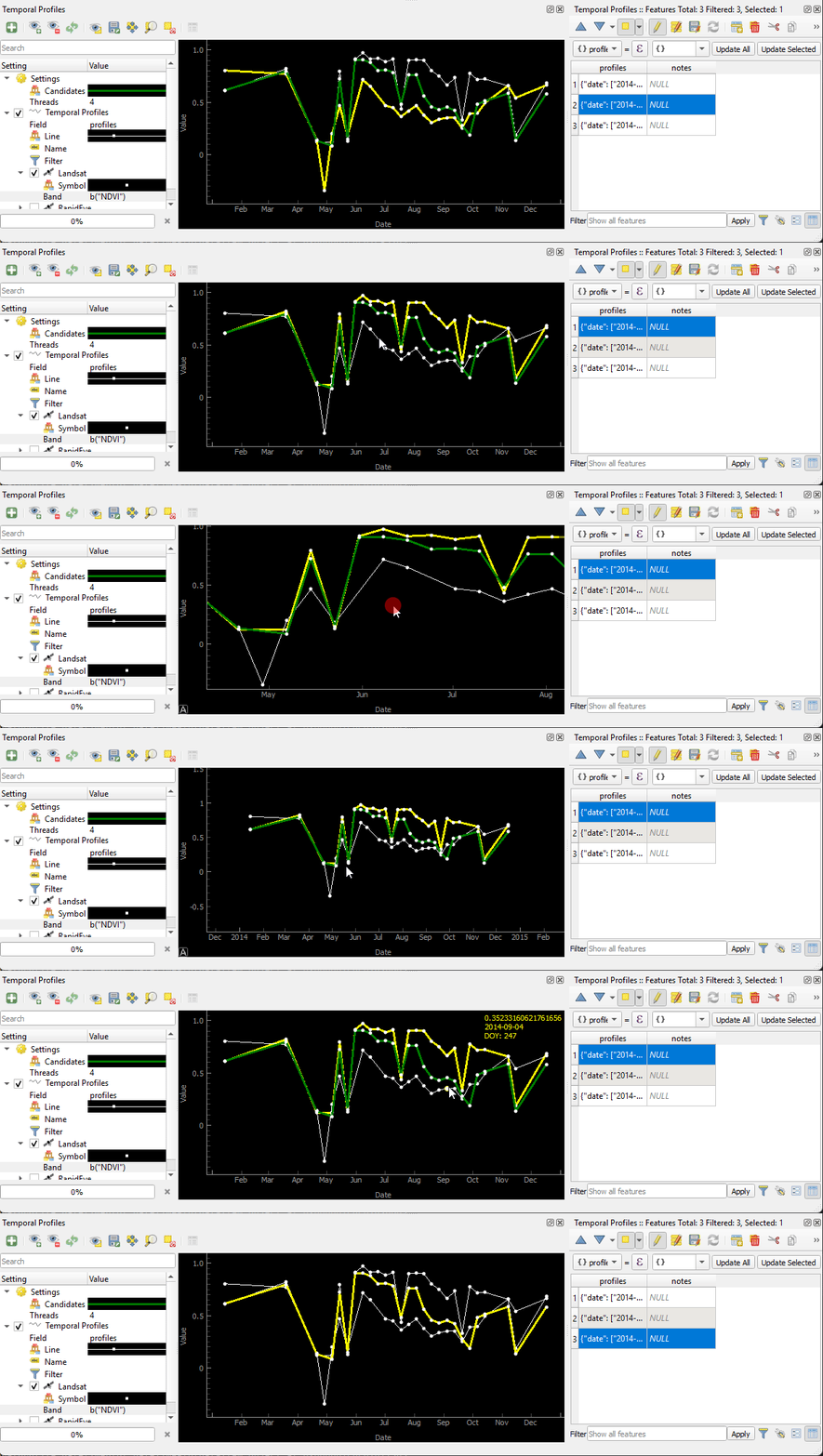
Fig. 6.3.6 Keep the right mouse button pressed to change the axis ranges. A selection of the lines also changes the selection of features in the attribute table and vice versa.
The context menu allows to enable or disable the display of a crosshair, data point information, and the time window that is visualized by maps in the Map Visualization. This time window can be adjusted interactively, e.g. to display the maps corresponding to an interesting event or sections in a temporal profile.
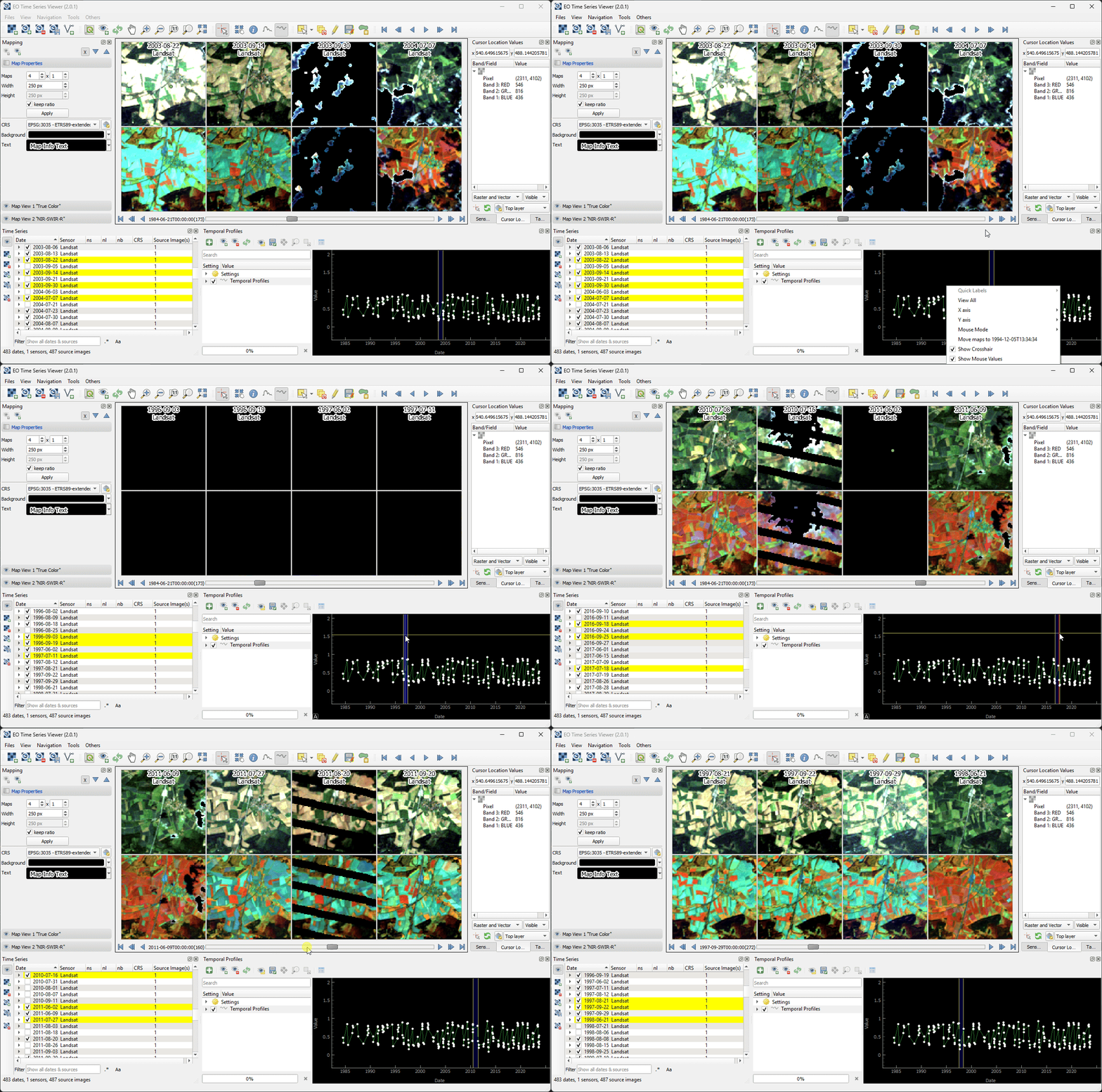
Fig. 6.3.7 Temporal profile plot with interactively changeable time window from which observations are displayed in the maps.